
React’s useEffect Hook

kilarov zaneit

If you’re like me and have been relying predominantly on class components in React, you’re probably familiar with methods such as componentDidMount, componentDidUpdate, and componentWillUnmount. When it comes to using hooks, though, useEffect can take the place of all three of the aforementioned lifecycle methods.

useEffect is passed a function that is called after each render. Let’s say I’m creating a teleportation device to change locations each week (1-52 for each week of the year) so that I always wake up somewhere new. (Anyone else miss traveling right now?) In the example below, I’m defining an async function and invoking it at the end of useEffect.
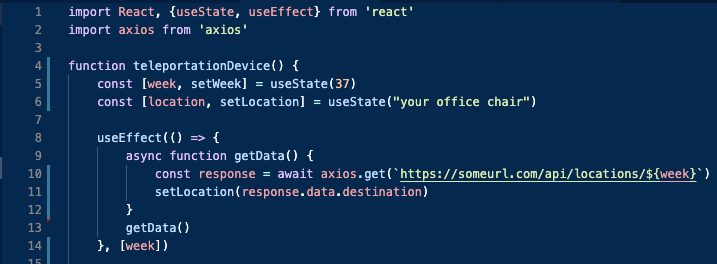
Notice the second argument given to useEffect. On line 14, I’m passing week into an array. This array (which in my case exists of only one object) is a variable that must change in order to invoke useEffect. My location will now only change at the beginning of each week.

Also note that I am using axios instead of fetch to pull data. If you want to know more about axios, this is a great reference explaining the difference between that and the native fetch API. This cheat sheet will help you get started writing axios requests.

A really nice thing about the useEffect hook is that you can have multiple of them. If you wanted to invoke a different piece of functionality based on a different condition, you could write a new useEffect function. You can also execute clean-ups at the end of useEffect to avoid leaks in memory. You can read more about clean-up functions and timing effects in the ReactJS documentation.

Thanks for reading!

Sources and Further Reading:
1. https://reactjs.org/docs/hooks-reference.html#useeffect
2. https://medium.com/@zach.gollwitzer/imperative-vs-declarative-programming-procedural-functional-and-oop-b03a53ba745c (a Medium post that talks about imperative programming as opposed to declarative; useful to help wrap your head around how useEffect adds an imperative dimension to React)
3. https://www.npmjs.com/package/axios (for installing axios)

Getting Started with Hooks (pt. 2): Forms

As most React lovers know, creating even the most basic of forms can feel tedious. At minimum, you need 1. a constructor that holds the state of your form inputs; 2. a handleChange function to listen for any changes to that form; and 3. JSX to render all of the above. It’s easy to end up with a lot of repetitive code. Thankfully, React Hooks can do the same thing in a fraction of the lines of code one would typically have to write to achieve a working form. In this post, I’ll go over some fundamentals of forms created with Hooks.

Though the useState hook is super useful for things like this, I’ll be showing you a way to create a custom hook that can be used and re-used to create multiple form inputs within your application.

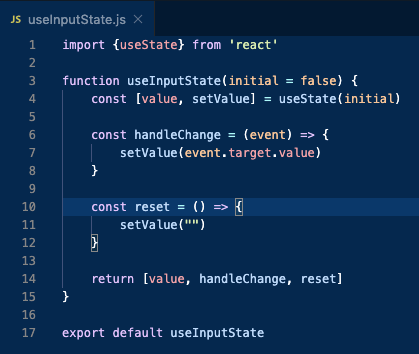
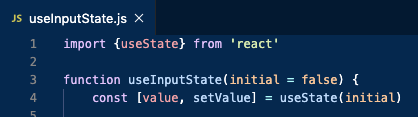
First, you’ll create a new file (I like save these within a subfolder under src called ‘hooks’). I’ll call it useInputState. Import the generic useState via destructuring, define your function, and set an initial value (below, lines 1-3).

Then, you’ll create a piece of state and a way to manipulate it, passing in the initial value as an argument to useState.

You’ll define a handleChange function that takes the event as an argument, and uses the setValue method (defined above) to set the state to the current form value. This part looks pretty similar to a generic handleChange that you’ve seen whether or not you’ve used hooks.

You’ll use that same method in a reset function, which sets your form value back to an empty string.

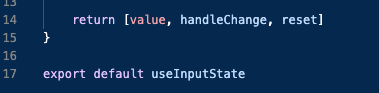
Lastly, you’ll return all of your methods in the form of an array (or object, if that’s better for your use case).

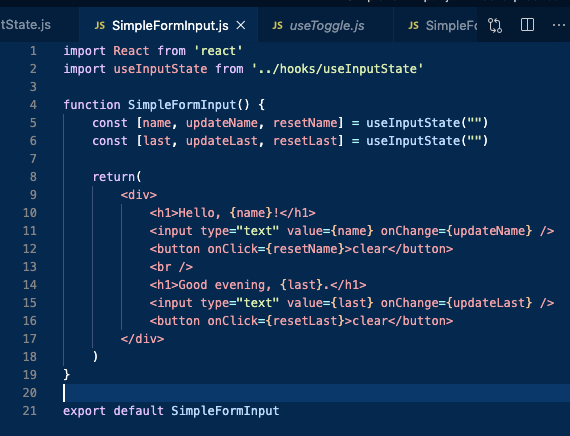
Now, you can create another file (I like to keep this type in a components subfolder). Import React as per usual as well as the useInputState hook you just created.

Within your functional component, you can define a few fields that correspond to a piece of state, the update/set method, and a reset method. These will utilize your custom hook with an empty string passed in for the initial value.

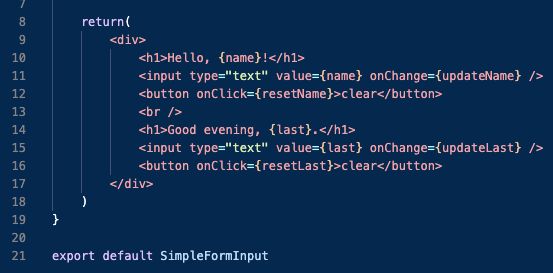
Now, all you need to do is write your custom JSX. The form I created for the purposes of this post is very simple and doesn’t actually submit to a backend, but the point here is simply to demonstrate the ease of creating forms with hooks.

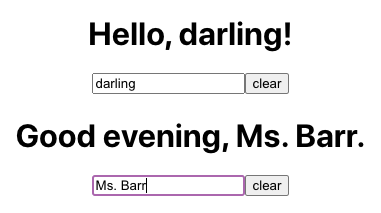
Lastly, for ease of reference, here is the full code we’ve just written and the resulting form. Hope this helps!

Sources + Further Reading:
1. https://www.udemy.com/course/modern-react-bootcamp/ (seriously recommended!)
2. https://upmostly.com/tutorials/using-custom-react-hooks-simplify-forms
3. https://reactjs.org/docs/hooks-custom.html#gatsby-focus-wrapper
4. https://reactjs.org/docs/hooks-faq.html#gatsby-focus-wrapper

The Easiest Way to Include a Demo in your GitHub Readme

Devs on the job market right now know (or should know) how important it is to have a polished-looking GitHub page, especially in regards to the readme. Though there are plenty of guides with dos and don’ts, tips and tricks, etc., something I realized quickly was that virtually no hiring manager or lead dev is going to clone your repo and test your app. In a world in the midst of COVID-19 where there may be 200+ applicants for a single position, my word of advice is: You need to make it easy for them. That doesn’t necessarily mean a lot of extra work on your part.

In this post, I’ll cover one aspect of a readme that’s going to help you stand out and really doesn’t take that much time: adding demo clips in the form of GIFs.

Why use GIFs? You can’t embed a YouTube video in a readme. And even if you choose to include a link, the likelihood of someone clicking the link and watching your entire demo from beginning to end is probably less than you’d think. In my GitHub repo, I’ve broken down the demo into snippets of 30-second-or-less GIFs that each demonstrate a single feature. In theory, someone could spend only a minute or two on each of my readmes and get a decent idea of what I built. The best part? The whole process can take less than an hour from recording to uploading, writing, and formatting. (I’ll cover formatting in a later post.)

First, you’ll want to use a screen capture tool that you can record short video with. I downloaded Giphy Capture from the Mac Appstore. With that tool, you can screen record for up to 30 seconds and save as a gif directly. If you use a different screen recording tool that doesn’t support saving as a gif, you can use an online conversion tool like ezgif.com.

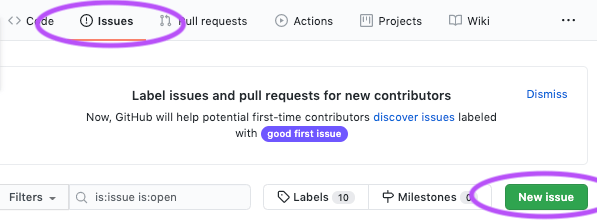
Once you have your gifs saved, you’ll want to navigate to your repo’s “Issues” tab and create a new one.

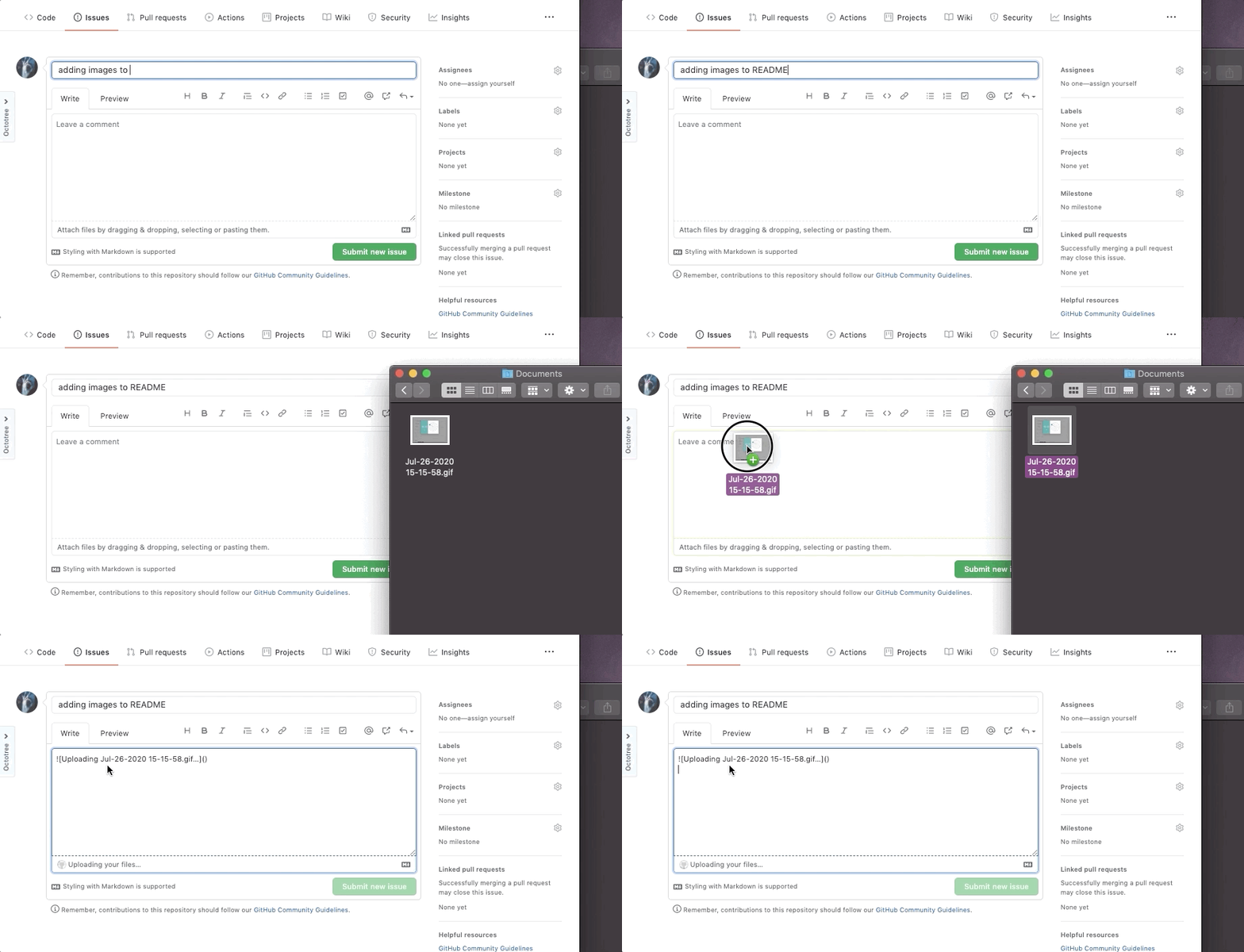
Then, you’ll create a title, like “adding GIFs to readme”, and drag your gif(s) to the text area. They will take a moment to upload. When that’s complete, click “submit new issue”.

After dragging gif(s) in, submit the issue.

Once the issue is submitted, the gifs will show up. Right click each one and copy its image address. I usually make a small note of what the gif is showing, and paste the image address along with it in my Notes app or similar. Once you have the addressed copied, you can close the issue and return to creating your readme document

Finally, when you’re ready to use the gifs in your readme, give each one alt-text and paste in the url in the following format:
![alt text here](https://user-images.githubusercontent.com/your-url-example.gif)

That’s it! Now when you save your readme, your gifs will show up with your other Markdown-formatted text. Feel free to leave feedback or questions, as usual. Hope this helps.


React’s Virtual DOM

As a React developer, there are a few questions your interviewer is guaranteed to ask. One of them is, “Can you tell me about the Virtual DOM and why it’s important in React?” (to which you’ll say “Of course!” and continue with a brief summary of what you will learn or get a refresher on by reading this post).

The first bit of information you should definitely know is that it is distinct from the DOM, or document object model. The DOM represents the UI of an application, and its structure is like a tree comprised of nodes for each HTML element. It can be modified directly using JavaScript. For example, you’ve probably seen a bit of code written like this: document.getElementById('id-of-element').innerHTML = "new text". This function would update the DOM, the CSS and layout would be recalculated, and the page would re-render and display the “new text”.

On a mass scale, directly updating the DOM can be pretty costly in terms of performance. This is why React uses the more lightweight virtual DOM to quickly update the page any time a change happens. The virtual DOM exists as two copies of the real DOM. When a change is detected, the copy of the virtual DOM that holds the changes is compared with the original, unchanged copy so that React can trigger a change in the real DOM. The difference between this process (called ‘diffing’) and direct manipulation of the real DOM is that only the pieces that have changed are re-rendered, as opposed to the entire page.

Although React developers don’t need to program updates to the real DOM and simply need to make sure that state is updated at the appropriate times, it’s still good to know why React is so great in the first place. After all, if you don’t understand and appreciate the value of the tools you use on a daily basis, why be a dev in the first place? 🙂

Changing Button Text in Amplify Auth UI Components

For those of you who haven’t tried customizing AWS Amplify’s UI components, this might seem a bit silly to write a blog post about. For those of you who have or are in the process, you can thank me later.

In the early stages of adding authentication to an application I’m working on, I wanted a quick and simple way to use Amplify’s built-in auth components with a few customizations (header text, placeholders, an username alias, and button color/text). It was bugging me that the button text was “send code” for both the initial step of the Forgot Password component and the second, entering a new password after receiving that code. I was able to write pieces of custom code relatively smoothly, so I was surprised when changing the button text was the hardest thing I’d encountered when styling the component thus far.

The AWS docs I kept being sent to after many Google searches suggested that it would be as simple as providing a value for buttonText or submitButtonText that would override the default value. Not the case. The only other viable option I was really finding was to write entirely customized Auth components. That would have caused a need for refactoring other pieces of my code, which seemed overkill and not really worth it at this point in the process.

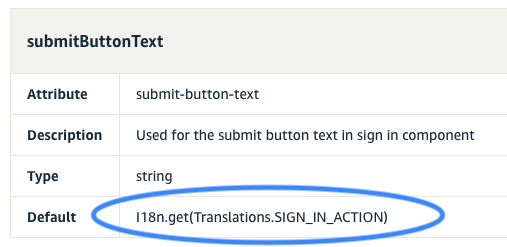
Something I noticed in the docs was that the default value for the buttons within all of the Amplify Auth components looked something like this:

Apparently, I18n means ‘Internationalization’, abbreviated as i 18 n because of the 18 letters between the i and n of the word. Commonly used text and buttons within pre-built Amplify components are translated based on location with the help of the I18n library.

Therefore, the “hack” I used that’s been very useful to me thus far will not be suitable for everyone, such as those who actually need those translations. For now, the app I’m working on is based within a single city in the US, so I’m not really concerned about needing translations.

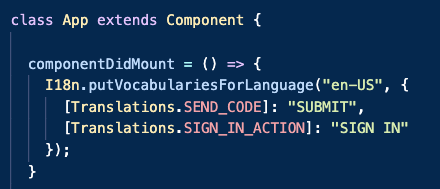
What I did to change the text of the button was override the internationalized “send code” string with a static, generic “submit” string. In addition to the other necessary Amplify imports, I imported the following:

I then reassigned the value of any button in my app that read “send code” and “sign in” with the following:

And that’s that! I hope this saves someone else out there the headache I had to endure. 🙂

Sources, further reading:
1. https://www.w3.org/International/questions/qa-i18n
2. https://docs.amplify.aws/ui/auth/authenticator/q/framework/react#sign-in
3. https://github.com/aws-amplify/amplify-js/blob/main/packages/amplify-ui-components/src/common/Translations.ts (*In case you need to override any other text within their components, all of the defaults are here!)
4. https://docs.amplify.aws/ui/customization/translations/q/framework/react
5. https://docs.amplify.aws/lib/auth/customui/q/platform/js#create-your-own-ui

Getting Started with React Hooks

Recently, when speaking to an interviewer about my bootcamp experience and the technologies I’ve learned since then, he was a bit surprised I hadn’t begun learning Hooks yet. As a matter of fact, I was too. I started a tutorial last week and though I’m only a couple hours in, I’d like to share what I learned and how wonderfully simple it is to implement Hooks in your React application (at least at a basic level).

First, imagine you’re creating application that displays an emoji you’d like to toggle two different versions of an emoji (such as a like/unlike feature). In my example, I’ll be toggling a caterpillar to a butterfly (because why not?). In a world without Hooks, you’d probably begin by creating a class component, and storing the currently-displayed emoji within state. Then you’d create a standalone onClick function that toggles the two different emojis, likely via ternary and setState.

Although it wouldn’t take that long to code the above example out, any dev who’s watched an app scale (or built their own) and witnessed the jumbled mess that comes out of passing down props through multiple components, bubbling up state, and writing handlers and toggles oh my!, knows how quickly it can get out of control without a library like Redux (or in our case, Hooks).

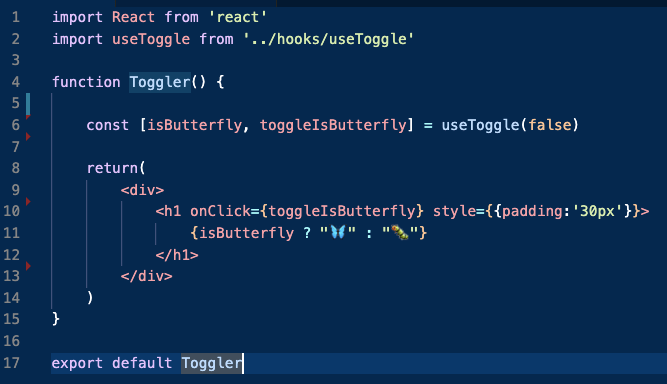
In my emoji toggler, I’d create a functional component called Toggler.js. That component would look something like this:

So what about setting state? You can’t set state or use lifecycle methods in a functional components.. so what gives here?

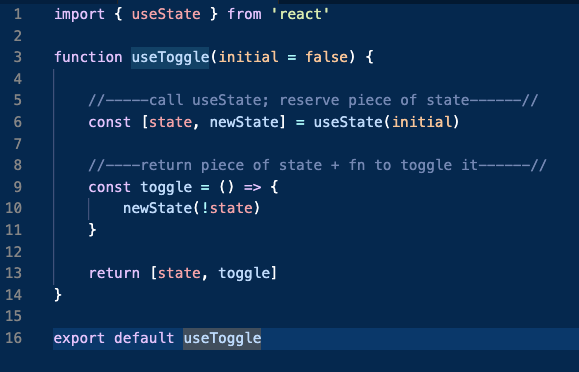
Answer: Hooks allows us to use the above features without classes. In my application, I’ve created a folder separate from my components folder (but within src) called “hooks”. I’ll call the file useToggle.js and import the useState hook. On line 6, I’m initializing a variable called “state” to a value called “initial”. The second argument is actually a function that lets us update the state, so I’ve named it newState. When my caterpillar is clicked, the toggle function is triggered and the Toggler component is re-rendered with a butterfly.

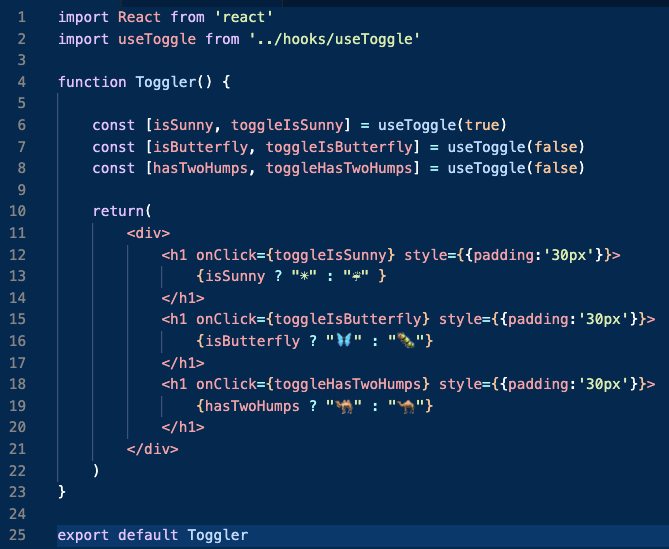
To understand why I created useToggle separately and kept names generic, let me add a few things into my toggler.

As you can see, all of the onClick functions within the return statement of Toggler are calling a single toggle function within useToggle. I didn’t need to write any extra code in the latter file to be able to toggle any of these emojis back and forth. Pretty cool, huh?

Sources, Tutorials, and recommended reading:
1. https://reactjs.org/docs/hooks-state.html
2. https://www.udemy.com/course/modern-react-bootcamp/learn/lecture/14384888#content
3. https://reactjs.org/docs/hooks-overview.html

Easy Customization of Amplify Auth Components in React

As my team nears the launch date for new application features that require secure authentication, we’re in the process of building our own customized components. In the first phases of design, however, full customization was not at the top of the priority list. During that time I needed to ensure that our pages were fully secure, but didn’t want to spend a lot of time with styling. For this purpose, AWS Amplify’s pre-built Auth components were the perfect solution. And they DO offer a good amount of customization options to get you up and running fairly quickly. In this post I’ll walk you through some basic customizations that came in handy for us; hopefully they’ll be helpful for those of your in your app’s development stages as well.

This post assumes you have a basic foundation in React. If you want to set up a basic React application and don’t have much experience, I highly recommend this YouTube tutorial by The Net Ninja on React and Redux. (If you want to build on that and integrate Hooks into the mix, check this out.) You’ll also want to configure your app for Amplify. I may write a post on that in the future (feel free to leave me a comment if that’s something you’d like to see).

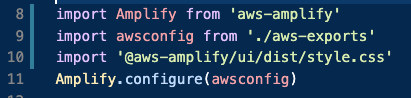
I like to keep my Amplify configuration within index.js after the other usual imports:

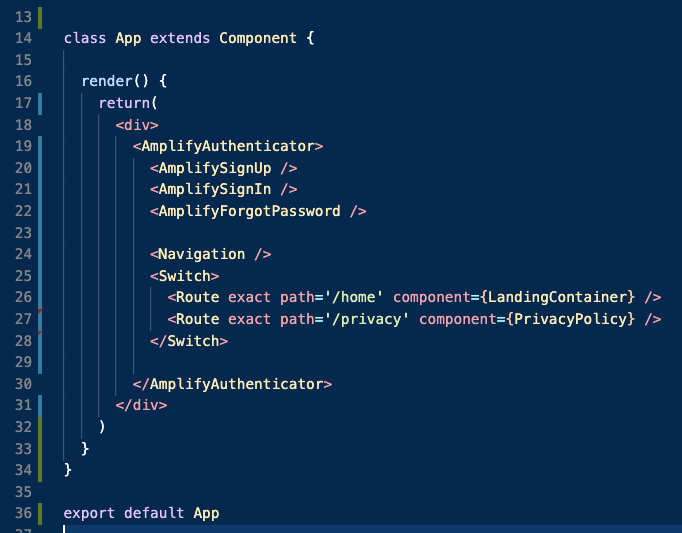
App.js is where I’ll be importing all components needed for authentication:

Since I’m customizing these elements individually, I chose to import AmplifyAuthenticator and the inner components in separately. In this case, you won’t need to import the higher order component, withAuthenticator. AmplifyAuthenticator will wrap the content of your application. All of that is wrapped inside of an outer div.

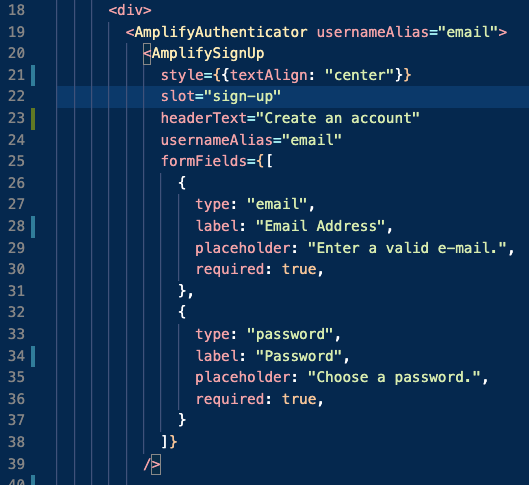
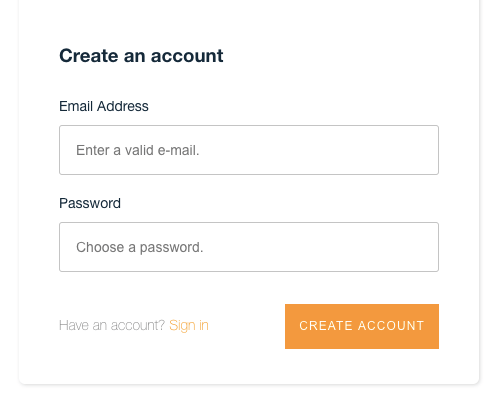
In our case, we wanted to forego the required username and only require an e-mail and password for signup instead. We also wanted to do away with the phone number requirement. Note that in the following images, I’ve included usernameAlias=”email” in each component. Since the default configuration is being overridden, we have to be explicit in our use of e-mail as opposed to username. The customizations for signup looked like this:

The end result is this:

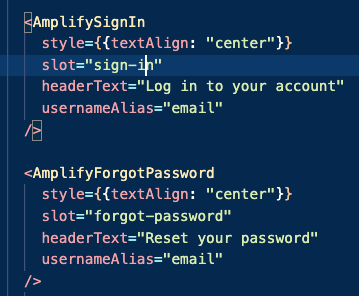
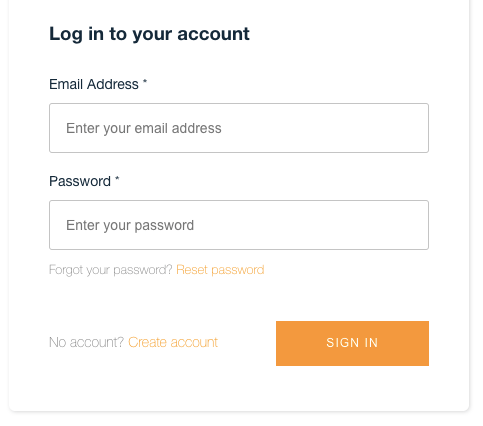
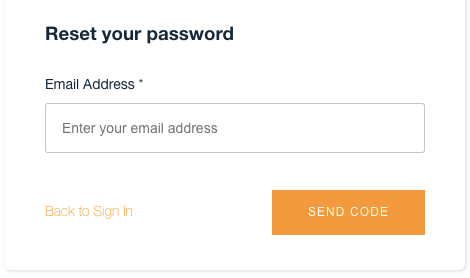
Lastly, the sign in and forgot password components have less customization in our case and were written as follows. Note that these components are explicitly styled to center align the text. This renders the inner components in the center of the page, rather than the top left (default):

And that’s it! I hope this was helpful for you. If you need some clarifications or there are other topics you’d like me to cover (related to React, Ruby, AWS, GraphQL, or anything I’ve written recently), feel free to leave that in the comments or drop me a line at andrea@andreabarr.dev. I’m still relatively new at writing about code, so I’m open to any suggestions or feedback!

GraphQL’s Type System

The backbone of GraphQL’s structure as a query language is its type system. The community has put together fantastic and thorough documentation and tutorials on GraphQL types and how to begin structuring your own schema, but the purpose of this post is to give you a quick overview so that the structure seems a bit less daunting if you’re taking the autodidactic approach (as I did).

The first types you’ll come across when learning to define your schema and query your API are operation types (often referred to as “root” types), which are: query, mutation, and subscription. You can think of a query like a GET request in REST, and a mutation like a combination of POST, PUT/PATCH, and DELETE. Subscriptions allow the server to send a client data based on the occurrence of a specific event.

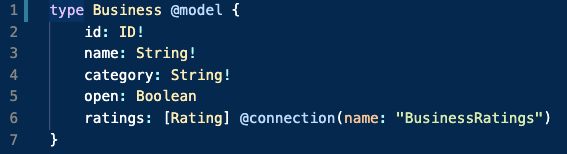
When defining your schema, you’ll usually be creating a series of object types composed of multiple fields. Here’s an example of an object type I created for an AWS app I was building last week:

Let’s break that down. The field value types (yes, they’re also types!); ID, String, Boolean, Int (integer), and Float are called scalar types. Scalar types can hold a single value and the above list comes built in. In most service implementations, there is also support for a Date type; and in some, an Enum (enumeration) type, which is a particular type of scalar restricted to defined values.

The exclamations on fields 2-4 imply that the fields are non-nullable, meaning that an object must contain values for those fields when it is created. This also means that those fields will never return null when queried.

I won’t cover these for now, but other types worth reading about are interfaces and unions (for cases in which types share common fields) and inputs (complex, non-scalar type that can be passed into another object within a single field).

Sources and further reading:

  1. https://blog.logrocket.com/defining-types-for-your-graphql-api/
  2. https://graphql.org/learn/schema/
  3. https://www.telerik.com/blogs/graphql-schema-resolvers-type-system-schema-language-query-language
  4. https://www.howtographql.com/graphql-js/7-subscriptions/

A Beginner’s Guide to GraphQL: A Short Introduction

Hey all! I realize it’s been a while since I last posted. Amidst the chaos of the last weeks of bootcamp, the beginning of a new career (yay!), and adjusting to a WFH routine during a pandemic, I chose to take a step away from the blog for a bit. Now I’m back, and ready to share some advice, stories, guides, and bits of knowledge I’ve gained as I work to improve my technical skills post-graduation. I hope you find it helpful!

A few weeks into contributing to the landing page written in React, I began helping to redesign our database as we took a serverless approach with the help of AWS tools like AppSync and DynamoDB. In a few weeks, I hope to have some in-depth guides to share about what I’ve learned about these tools, but for now I’d like to take a step back to the fundamentals. In the next few posts I’ll introduce you to GraphQL, a query language used to retrieve and manipulate data from an API (and known by some as “The Better REST”1).

So, why do many devs prefer GraphQL to REST APIs? Short answer: Efficiency.
It replaces the need for multiple queries that generally will always return more data than necessary, with the ability to request info via single specific query to the GraphQL server.

For example: Imagine I’m a blog author (just imagine, guys) and you were to look at my profile. On the main page of my site, you’d see a list of my posts, recent subscribers, and my user photo + bio + display name. With REST, you’d have three GET requests right off the bat: /users/:id, /users/:id/blog-posts, and /users/:id/subscribers.

That’s too much data.

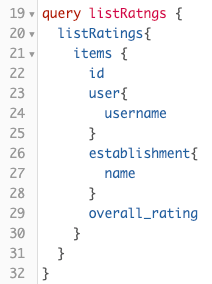
With GraphQL, you’d send a single query that included my display information (photo, bio, name), the usernames of the last 5 subscribers to my page, and the last three posts I published (titles + publish date + text snippet). You would get back exactly what you asked for: no more, no less. Here’s an example of a GraphQL query I created within AWS AppSync recently:

Here, I’m asking for rating data that includes an overall rating, the username of the person who gave the business that rating, and the name of the business being rated. This kind of specificity comes in handy when you’re trying to optimize performance and want more insightful analytics on highly interactive sites.

Hopefully this gives a little insight as to the advantages of building a GraphQL API. Check in next week for an overview of the GraphQL Type system!

Sources:
1. https://www.howtographql.com/basics/1-graphql-is-the-better-rest
2. https://www.rubrik.com/blog/graphql-vs-rest-apis/

collection_select

My initial thought when trying to make use of collection_select in a form was: You mean I have to memorize something? Why can’t it just be logical and easy? As a rookie Rubyist, I want everything to look as close to English as possible, and this didn’t fit. In my first months of programming, I’ve come to understand the importance of relationships, and not the arbitrary ordering of items (or in this case, arguments). But as the old saying goes, there are two certainties in life: death and syntax. Or something like that.

via giphy

collection_select is a method programmers use in creating forms. The advantage in using this method as opposed to a text input is that a user can only select from pre-existing values, which makes things easier on the user and keeps our table clean by preventing the creation of duplicate or unnecessary columns in error.

Here’s the format we’re working with:

collection_select(object, method, collection, value_method,
text_method, options = {}, html_options = {})

Let’s start with the first thing we see in parentheses: object

The object parameter here is referring to the instance of a class whose attribute you are selecting a value for. In the example below, the attribute value being selected will be assigned to the :employee (object) the user is creating a record for.

collection_select(:employee, :department_id, Department.all, :id,:name)

Note: When using FormBuilders form_with or form_for, this will be the target model and therefore won’t need to be included as an argument. Here, the dropdown created by collection_select could serve the purpose of selecting a department the employee will be working in (or updating an existing employee record if they’ve transferred to another). E.g.:

<%= form_for @employee do |f| %>
   <%= f.collection_select(:department_id, Department.all,    :id, :name) %>
   <%= f.submit %>
<% end %>

Next, we have the method.

Here, the method refers to the attribute of the object that the dropdown value must correspond to. (Read: foreign key!!) This would be the :department_id in the above examples.

Following the method, another method! This one’s called the value method.

The value method will be called on each object instance (or row of a table, if we’re thinking in terms of a database) to retrieve a value. Often, this will be the a primary key of the associated object. Continuing with the above example, we’d locate unique department instances by their :id.

The last thing I’ll be covering is yet another method: the text method.

This appears as visible text the user can see as a selection value within the dropdown. Typically, this is a :name that is easily identifiable to the person making the selection. The above example follows this convention.

Although the last arguments can provide many options for customization of a collection_select dropdown, they are completely optional, and thus out of scope for the purposes of this post. If you’d like to know more, I’d suggest you check out this link:
Rails API: Form Options Helper

Create your own website, free on WordPress.com.Create your own website.
Start free