

Devs on the job market right now know (or should know) how important it is to have a polished-looking GitHub page, especially in regards to the readme. Though there are plenty of guides with dos and don’ts, tips and tricks, etc., something I realized quickly was that virtually no hiring manager or lead dev is going to clone your repo and test your app. In a world in the midst of COVID-19 where there may be 200+ applicants for a single position, my word of advice is: You need to make it easy for them. That doesn’t necessarily mean a lot of extra work on your part.
In this post, I’ll cover one aspect of a readme that’s going to help you stand out and really doesn’t take that much time: adding demo clips in the form of GIFs.
Why use GIFs? You can’t embed a YouTube video in a readme. And even if you choose to include a link, the likelihood of someone clicking the link and watching your entire demo from beginning to end is probably less than you’d think. In my GitHub repo, I’ve broken down the demo into snippets of 30-second-or-less GIFs that each demonstrate a single feature. In theory, someone could spend only a minute or two on each of my readmes and get a decent idea of what I built. The best part? The whole process can take less than an hour from recording to uploading, writing, and formatting. (I’ll cover formatting in a later post.)
First, you’ll want to use a screen capture tool that you can record short video with. I downloaded Giphy Capture from the Mac Appstore. With that tool, you can screen record for up to 30 seconds and save as a gif directly. If you use a different screen recording tool that doesn’t support saving as a gif, you can use an online conversion tool like ezgif.com.
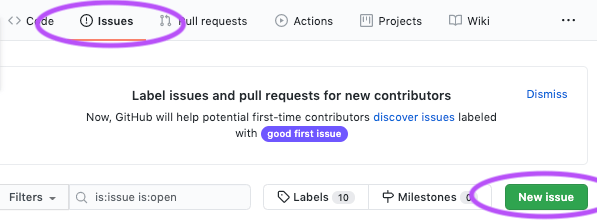
Once you have your gifs saved, you’ll want to navigate to your repo’s “Issues” tab and create a new one.
Then, you’ll create a title, like “adding GIFs to readme”, and drag your gif(s) to the text area. They will take a moment to upload. When that’s complete, click “submit new issue”.
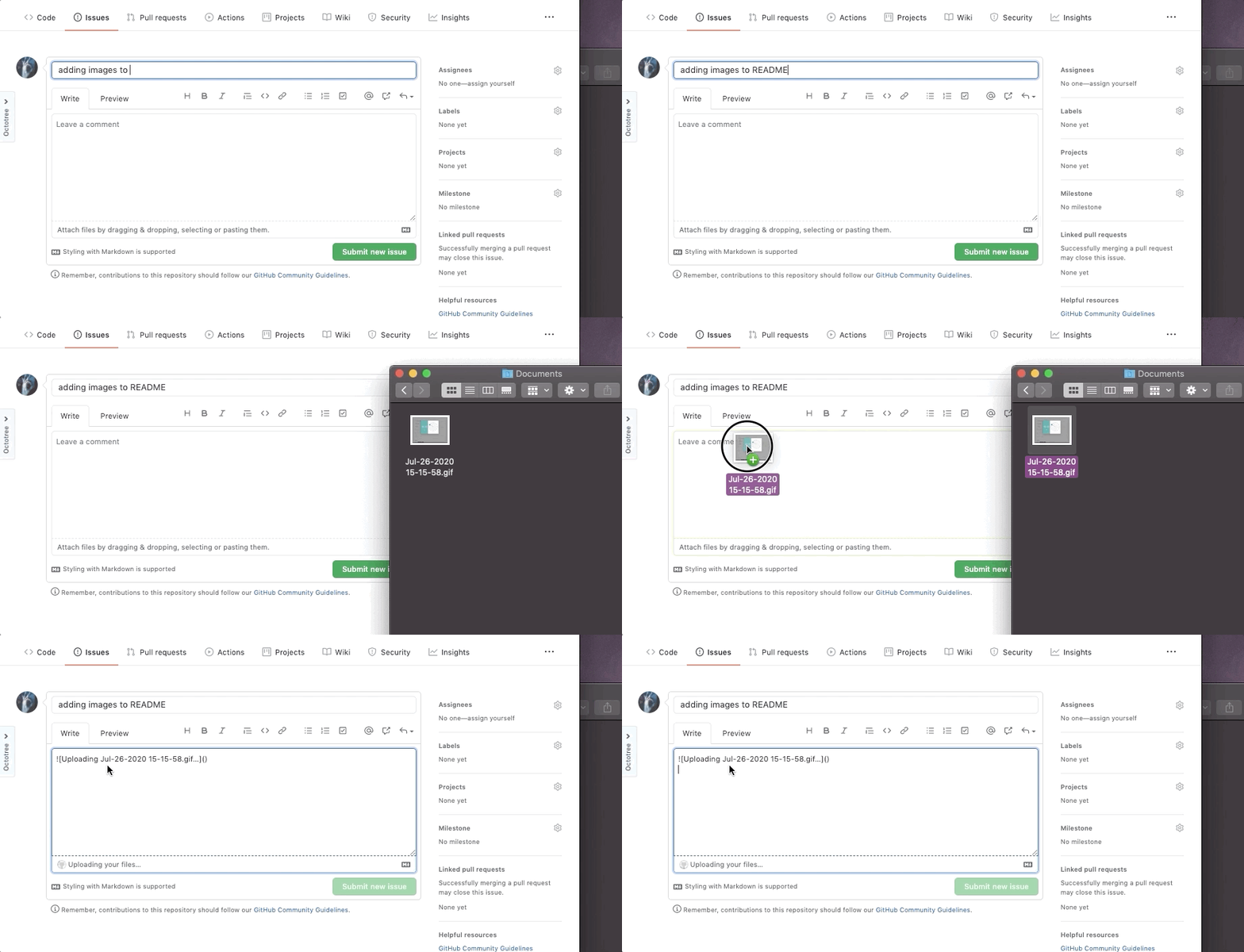
Once the issue is submitted, the gifs will show up. Right click each one and copy its image address. I usually make a small note of what the gif is showing, and paste the image address along with it in my Notes app or similar. Once you have the addressed copied, you can close the issue and return to creating your readme document
Finally, when you’re ready to use the gifs in your readme, give each one alt-text and paste in the url in the following format: 
That’s it! Now when you save your readme, your gifs will show up with your other Markdown-formatted text. Feel free to leave feedback or questions, as usual. Hope this helps.

