

For those of you who haven’t tried customizing AWS Amplify’s UI components, this might seem a bit silly to write a blog post about. For those of you who have or are in the process, you can thank me later.
In the early stages of adding authentication to an application I’m working on, I wanted a quick and simple way to use Amplify’s built-in auth components with a few customizations (header text, placeholders, an username alias, and button color/text). It was bugging me that the button text was “send code” for both the initial step of the Forgot Password component and the second, entering a new password after receiving that code. I was able to write pieces of custom code relatively smoothly, so I was surprised when changing the button text was the hardest thing I’d encountered when styling the component thus far.
The AWS docs I kept being sent to after many Google searches suggested that it would be as simple as providing a value for buttonText or submitButtonText that would override the default value. Not the case. The only other viable option I was really finding was to write entirely customized Auth components. That would have caused a need for refactoring other pieces of my code, which seemed overkill and not really worth it at this point in the process.
Something I noticed in the docs was that the default value for the buttons within all of the Amplify Auth components looked something like this:
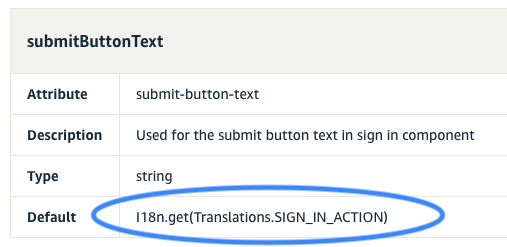
Apparently, I18n means ‘Internationalization’, abbreviated as i 18 n because of the 18 letters between the i and n of the word. Commonly used text and buttons within pre-built Amplify components are translated based on location with the help of the I18n library.
Therefore, the “hack” I used that’s been very useful to me thus far will not be suitable for everyone, such as those who actually need those translations. For now, the app I’m working on is based within a single city in the US, so I’m not really concerned about needing translations.
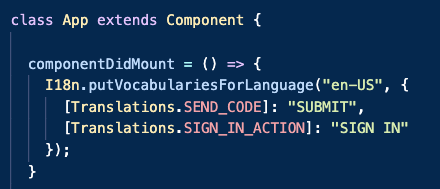
What I did to change the text of the button was override the internationalized “send code” string with a static, generic “submit” string. In addition to the other necessary Amplify imports, I imported the following:

I then reassigned the value of any button in my app that read “send code” and “sign in” with the following:
And that’s that! I hope this saves someone else out there the headache I had to endure. 🙂
Sources, further reading:
1. https://www.w3.org/International/questions/qa-i18n
2. https://docs.amplify.aws/ui/auth/authenticator/q/framework/react#sign-in
3. https://github.com/aws-amplify/amplify-js/blob/main/packages/amplify-ui-components/src/common/Translations.ts (*In case you need to override any other text within their components, all of the defaults are here!)
4. https://docs.amplify.aws/ui/customization/translations/q/framework/react
5. https://docs.amplify.aws/lib/auth/customui/q/platform/js#create-your-own-ui

